

Theme Documentation
- Introduction
- Installation
- Theme Installation via WordPress
- Theme Installation via FTP
- Setting up the Demo Content
- How To
- Use Page builder
- Set Up Homepage
- Features
- Theme Options
- Page Options
- Page Templates
- Useful
- Theme Update via WordPress
- Theme Update via FTP
- Speed Optimization
- Child Theme
- Changelog
Introduction
Thank you for purchasing Playbit WordPress Theme. Before you get started, please be sure to always check out these documentation files. We outline all kinds of good information, and provide you with all the details you need know to use Playbit Theme.
If you are unable to find your answer here in the documentation, please contact us on our Support Forum or directly from our themeforest account
What is included in the price?
- Playbit WordPress Theme
- Child Theme
- Lifetime Updates
- Theme Documentation
- Premium Plugins
Please don't forget to rate Playbit with 5 stars and leave a nice review, it means a lot to us.
Simply log in into your Themeforest, go to Downloads section and click 5 stars next to the Playbit WordPress theme.
Thanks!
ThemeRegion Team
Theme Installation via WordPress
When you download the theme from Themeforest, you will get an archive file in .zip extension.
You need to unzip that archive. When done, you should see playbit.zip (zip file name can be changed from version to version).
Please, follow the steps below to install Playbit Theme.
Step 1 - Login to your WordPress Dasrdoard.
Step 2 - Go to Appearance > Themes. Click Add new button, located at the top of the screen or Add new theme ( see screenshots below ).
Step 3 - Click on Upload button at the top of the screen.
Step 4 - Choose Playbit.zip.
Step 5 - Wait while the theme is uploaded and installed then activate the theme.
Step 6 - After activating the theme a notice should appear on the top of the screen, click on begin installing plugins.
Step 7 - Select all the plugin,change Bulk Actions drop to Install then click apply ( see video below ).
Step 8 - Congratulation you are ready to use Playbit, check the First Steps part of our documentation to see what you may want to do before starting to edit your WordPress Site.

Common Theme Installation Problems
“Are you sure you want to do this?”
If you get the “Are you sure you want to do this” message
when installing Playbit.zip file via WordPress, it means you have an
upload file size limit. Install the theme via FTP if this happens, or
ask your hosting company to increase the limit.
Missing stylesheet file
If you get an error saying that the stylesheet is missing,
then you have uploaded the wrong folder. Please check that you are
uploading the Playbit.zip within the Theme Files folder. You have to
unzip the file that you download from Themeforest to find this.
Theme Installation via FTP
If you are going to install the theme using FTP, you will need an FTP Client, such as FileZilla.
When you download the theme from Themeforest, you will get an archive file in .zip extension.
You need to unzip that archive. When done, you should see Playbit Folder(folder name can be changed from version to version).
Please, follow the steps below to install the theme via FTP:
Step 1 - Log into your hosting space (server) via FTP client.
Step 2 - In extracted archive folder, find Playbit folder
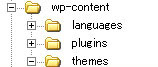
Step 3 - Upload the Playbit folder to your server in path .../wp-content/themes/.
Step 4 - The uploaded path should be like this: .../wp-content/themes/Playbit/
Step 5 - Login to your WordPress Dasrdoard and go to Appearance > Themes and activate the Playbit Theme.
Step 6 - After activating the theme a notice should appear on the top of the screen, click on begin installing plugins ( see screenshots below ).
Step 7 - Select all the plugin,change Bulk Actions drop to Install then click apply ( see video below ).
Step 8 - Congratulation you are ready to use Playbit, check the First Steps part of our documentation to see what you may want to do before starting to edit your WordPress Site.
Additional Links
Setting up the Demo Content
Before importing the dummy data Make sure you have all the plugin installed ( if you want to use woocommerce, make sure to install woocomerce first ).
One Click Importer
We will explain how to import the demo using our One Click Importer
WordPress Importer
We will explain how to import the demo using the WordPress Importer
Error or Problem with Import of the Demo
If you have problem with the Import of the demo please check this section
One Click Importer
Step 1 - Before proceed install the required plugins so that the importer works perfectly.
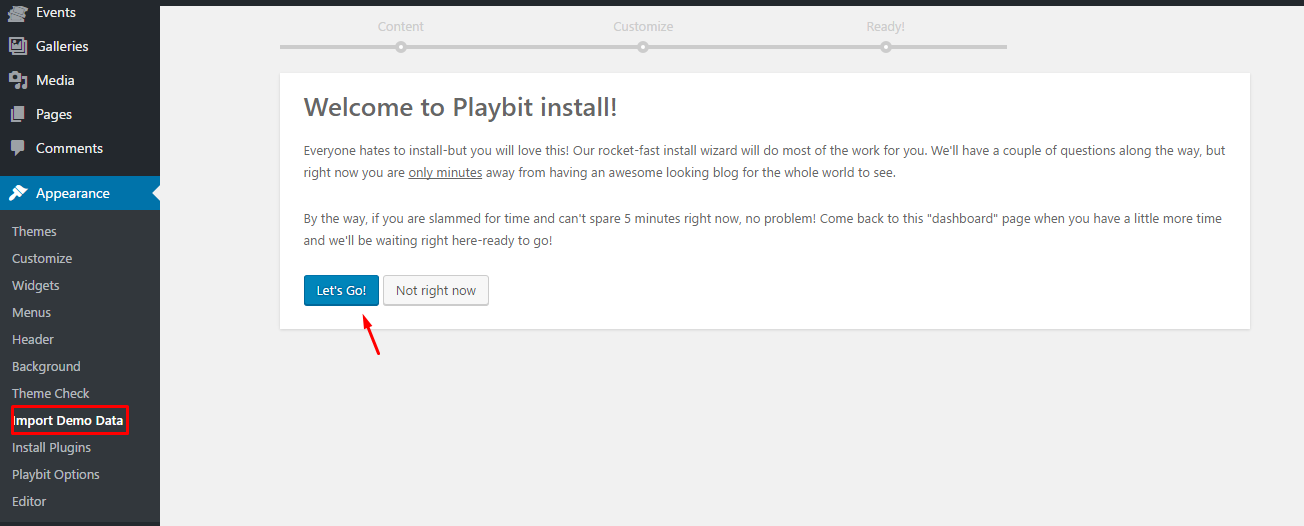
Step 2 - Go to Appearence > Import Demo Data. Then click 'Lets Go' button.
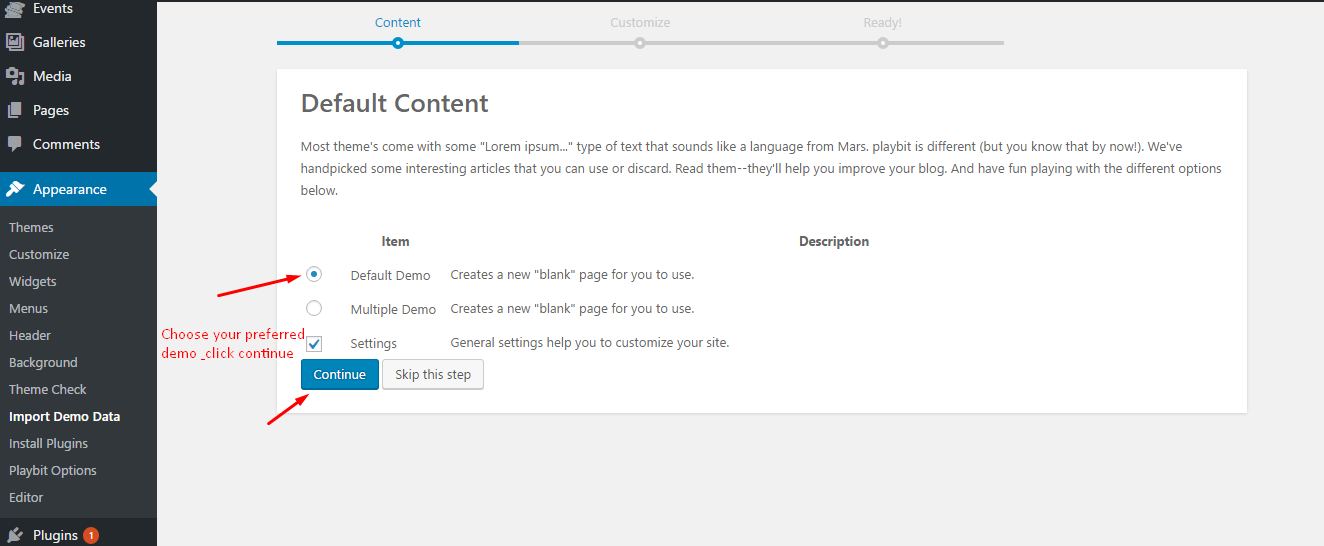
Step 3 - Choose your preferred demo to import & click continue. Wait till the data imported properly.
Step 4 - After importing the content go to theme options & provide your gmap api key. And also set the navigation under Appearence > Menu.
WordPress Importer
Use simple data(.xml) in folder: wp-content\plugins\Playbit-plugin\data_xml
Step 1 - Log into your WordPress Dasrdoard.
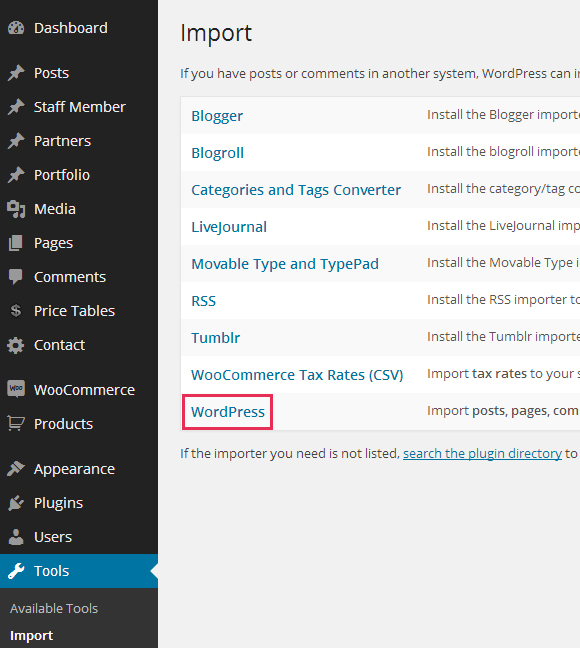
Step 2 - Go to Tools > Import. Then click on WordPress ( bottom of the list ).
Step 3 - A window should appear click the Install now button which is on bottom right.
Step 4 - Click Activate
plugin & Run Importer. Then choose the Playbit_demo.xml file and
click upload file and import Do not interrupt/cancel the import process!
Step 6 - Done! But you still need to set the Menu, Widget, Homepage, Contact Form.
The importer should be run only once. If something went wrong and you need to import the content again, you may need to reset your WordPress.
Use this plugin to reset the WordPress database : https://wordpress.org/plugins/wordpress-database-reset/
Error or Problem with Import of the Demo
If you have problems importing the demo ( example : infinite loading, error 505 with when using wordpress importer ) then you may have a problem with the server settings. Please check in : Support Forum.
Theme Options
The theme comes with an extensive Theme Options Panel. From
the Theme options panel you will be able to set or change the variation, contact details, social icons and a lot more. You should
take the time to go through all of these options to ensure that you are
getting the most out of the theme.
Click Playbit to access the Theme Options Panel.
Please do check the following video to understand the theme options for playbit theme.
Page Options
For each page you can control the settings of header/footer/sidebar etc. Please check the video for more details.
Page Templates
Please checkout the page templates video to know more details about the page templates.
Use Page Builder
Activate Page builder
Step 1 - Log in to your WordPress Administration Panel.
Step 2 - Click on Pages > Add New.
Step 3 - Click on Backend Editor.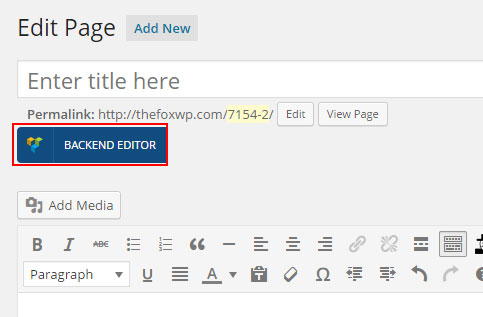
VC Components by Playbit
We've created lots of components/elements to use in the theme. These elements are core elements to design perfectly our beloved theme. Please check the video below to see what includes within the elements.
Set your Homepage
Step 1 - Go to Settings > Reading in your WordPress Dasrdoard panel.
Step 2 - Set "Front page displays" to a "Static Page".
Step 3 - In the drop down menu for "Front Page" choose a page which will be your home page.
Step 4 - Leave the drop down menu for "Posts page" empty, as this is not used by the theme.
Step 5 - Save changes.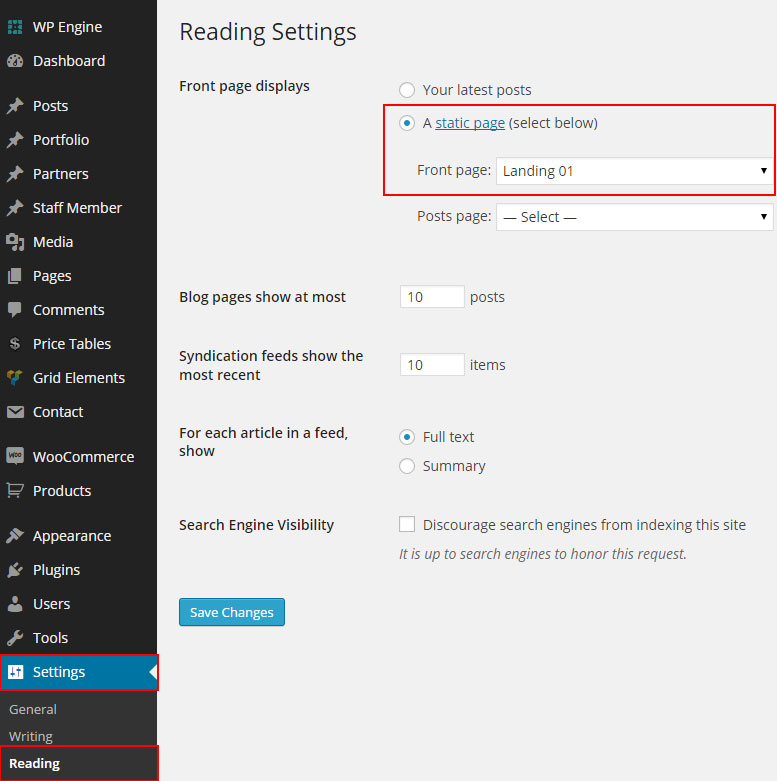
Child Theme
Playbit comes with a Child Theme.
Simply install Playbit_Child.zip like a regular WordPress theme.
What is a Child Theme?
A child theme is a theme that inherits the functionality of another theme, called the parent theme. Child themes allow you to modify, or add to the functionality of that parent theme. A child theme is the best, safest, and easiest way to modify an existing theme, whether you want to make a few tiny changes or extensive changes. Instead of modifying the theme files directly, you can create a child theme and override within.
Why use a Child Theme?
If you modify an existing theme and it is updated, your changes will be lost. With a child theme, you can update the parent theme (which might be important for security or functionality) and still keep your changes. It’s a great way to get started if you are just learning WordPress theme development.
Additional Links
Theme Update via WordPress
Updating the theme via WordPress is very similar to the install process via WordPress.
Follow the steps below to update your theme via WordPress:
Step 1 - Log into your WordPress Dasrdoard.
Step 2 - Go to Appearance > Themes.
Step 3 - Deactivate the Playbit Theme by simply activating a different theme. Once you activate a different theme, you can delete the Playbit theme.
Step 4 - Delete the Playbit Theme. Do not worry, your content will not be lost!
Step 5 - Then simply upload the new “Playbit.zip” file in the Appearance > Themes section. Click on the Install Themes tab at the top and choose to upload the zip file. You have this step explained in section: Theme Installation via WordPress.
Theme Update via FTP
Updating the theme via FTP is very similar to the install process via FTP.
Follow the steps below to update your theme via FTP:
Step 1 - Go to .../wp-content > themes
location on your server using a FTP client and backup your "Playbit"
theme folder by saving it to your computer, or you can choose to simply
delete it. Your content will not be lost.
Step 2 - Download the new version of Playbit theme from your Themeforest and retrieve Playbit folder by unpacking the zip that you download from Themeforest and Playbit_(version.number).zip.
Step 3 - Then simply drag and drop the new "Playbit" theme folder into .../wp-content > themes location. Choose to “Replace” the current one if you did not delete it.
Step 4 - Log into your WordPress Dasrdoard, go to Appearance > Themes and activate the new Playbit theme.
Speed Optimization
If you think your website takes too much time to load maybe you should.
- Install a Cache Plugin for WordPress. We recommend W3 Total Cache.
- Install an Image Compress Plugin. We recommend WP Smush It.
- Install a Database Optimizer Plugin We recommend WP Optimize
- Reduce the number of posts on the page
- Reduce the number of unnecessary plugins.
- Use more icons and less images.
Changelog
Version 4.4.3 ( 02 Jul 2020 )
++ UPDATED: WPBakery Builder Plugin Updated
Version 4.4.2 ( 25 Sep 2019 )
++ UPDATED: WPBakery Page Builder plugin updated to 6.0.5 ++ UPDATED: Playbit Core plugin updated to 4.1.4 ++ UPDATED: Demo content updated ++ FIXED: Twitter feed not loading properly issue fixed ++ FIXED: Menu dropdown not working properly on mobile issue fixed
Version 4.4.1 ( 31 Mar 2019 )
++ UPDATED: Playbit Core plugin updated ++ FIXED: Some minor css issue fixed ++ FIXED: Responsive issue fixed
Version 4.4 ( 09 Mar 2019 )
++ UPDATED: WPBakery Page Builder updated to 5.7 ++ UPDATED: WooCommerce template file updated for 3.5.x ++ UPDATED: Language file updated ++ FIXED: Event performer schedule loading issue fixed
Version 4.3.6 ( 21 Dec 2018 )
++ ADDED: Gutenberg support added ++ UPDATED: WPBakery Page Builder updated to 5.6 ++ UPDATED: WooCommerce template file updated for 3.5.x ++ UPDATED: Demo data updated ++ UPDATED: Language file updated ++ FIXED: Minor CSS issue fixed
Version 4.3.5 ( 16 Nov 2018 )
++ UPDATED: Playbit core plugin updated ++ UPDATED: Overall page templates updated ++ UPDATED: Template hierarchy updated ++ FIXED: Page template issue fixed ++ FIXED: Video slider not sliding issue fixed ++ FIXED: Broken images issue fixed
Version 4.3.4 ( 08 Nov 2018 )
++ UPDATED: WPBakery Page Builder plugin updated to latest ++ UPDATED: Language file updated ++ UPDATED: WooCommerce Version 3.5.x compatible ++ FIXED: On first load php error fixed ++ FIXED: Navwalker error fixed
Version 4.3.3 ( 21 Sep 2018 )
++ ADDED: Gallery slug change option added in theme option ++ UPDATED: WPBakery Page Builder plugin updated to latest ++ UPDATED: Language file updated ++ FIXED: Slider unknown argument issue fixed
Version 4.3.2 ( 04 Sep 2018 )
++ FIXED: playbit_options error on activating the theme while playbit core is not available fixed
Version 4.3.1 ( 07 Aug 2018 )
++ UPDATED: WPBakery Page Builder plugin updated ++ UPDATED: Playbit Core plugin updated ++ UPDATED: Language file updated & provided language file in playbit core plugin also ++ UPDATED: Demo data updated ++ UPDATED: WooCommerce template files updated to the latest ++ FIXED: Date showing in blog issue fixed ++ FIXED: wp_print_notices from single album page removed ++ FIXED: footer widget in multiple version showing fixed which intends to show only on multiple layouts of the theme. ++ FIXED: Some minor css issues fixed.
Version 4.3 ( 12 Mar 2018 )
++ UPDATED : Visual Composer plugin updated ++ UPDATED: Demo data updated ++ FIXED: Music player stop running music after first song fixed
Version 4.2 ( 28 Oct 2017 )
++ UPDATED: Playbit Core plugin updated ++ UPDATED: Visual Composer plugin updated ++ FIXED: Single gallery popup image size fixed ++ FIXED: Some minor css issues fixed
Version 4.1 ( 20 Sep 2017 )
++ FIXED: On activating framework option error fixed
Version 4 ( 18 Sep 2017 )
++ ADDED: Onepage version added ++ UPDATED: Playbit Core plugin updated ++ UPDATED: Visual Composer plugin updated ++ UPDATED: VC Elements updated totally. added customized options ++ UPDATED: Theme Option updated ++ FIXED: Demo import issue fixed ++ FIXED: Some minor css issues fixed
Version 3.2 ( 06 May 2017 )
++ ADDED: Woocommerce 3.0.x version compatibility added. ++ FIXED: Woocommerce template compatibility fixed for latest version.
Version 3.1 ( 10 April 2017 )
++ UPDATE: Visual Composer plugin updated to 5.1.1 ++ ADDED: Woocommerce 3.0.x version compatibility added ++ ADDED: Dark demo added. ++ UPDATE: Demo content updated ++ FIXED: Some skin issue fixed.
Version 3.0 ( 02 April 2017 )
++ ADDED: Video support added for background slider with no sound of course ++ ADDED: RTL support added ++ ADDED: Custom skin added ++ ADDED: Google font & websafe fonts added in theme options ++ UPDATE: Playbit Core plugin updated to 3.0. ++ UPDATE: Theme option panel robustly updated with more options ++ UPDATE: One click demo importer data updated along with the normal xml demo data file. ++ UPDATE: Translation file updated. ++ FIXED: Some style issues fixed.
Version 2.1 ( 19 Mar 2017 )
++ UPDATE: Demo content xml file updated in demo content folder ++ FIXED: Demo content importer issue fixed.
Version 2.0 ( 17 Mar 2017 )
++ ADDED: Total 4 variations enabled. ++ ADDED: 2 new demo added ++ ADDED: 3 more vc elements added. ++ UPDATE: Visual Composer plugin updated to 5.1. ++ UPDATE: Playbit Core plugin updated to 2.0 ++ UPDATE: Theme option panel updated with more variation options ++ UPDATE: One click demo importer updated with 4 new variations & customizing section. ++ UPDATE: Translation file updated. ++ FIXED: Some shortcode code generation issue fixed. ++ FIXED: Countdown timer on slider irrelevant time issue fixed. ++ FIXED: Some style issues fixed.
Version 1.2 ( 7 Mar 2017 )
++ Playbit-core plugin updated to v1.1 ++ Event festival shortcode issue fixed ++ Artist dropdown fixed on event schedule ++ Homepage slider issue fixed.
Version 1.1 ( 6 Mar 2017 )
++ One Click Demo Importer integrated ++ Few css issues fixed ++ Map loading issue fixed
Version 1.0 was released on March, 03, 2017.